

Quick Summary
If you’re paying for ads inside ChatGPT, you will eventually need the paperwork. Your accountant wants it, your finance lead wants it, and sooner or later a tax filing or an audit will ask for it. The good news is that ChatGPT Ads billing is fairly simple. It is postpay, so you’re charged after ads have been delivered. Charges hit your saved card when unpaid spend reaches a payment threshold, or at month end. Invoices and receipts go to the email address you set up in your billing profile. The confusing part is that OpenAI runs several billing systems (consumer subscriptions, Business workspaces, the API platform, and Ads Manager Beta), and people constantly look for their ad invoices in the wrong one. This guide walks through which system is which, how to get invoices out of Ads Manager, what to do when they go missing, and how to keep your records tidy without turning it into a monthly chore.
Why Your ChatGPT Ads Invoice Deserves More Attention Than You Think
Most advertisers ignore invoices until the moment they urgently need one. It’s a Friday afternoon, the books have to close, and someone asks for proof of every ad dollar spent last quarter. You can search your inbox, but you’re not sure which inbox, which email address, or which OpenAI account you signed up with.
An invoice is also more than a receipt. It’s the only document that reliably ties a charge on your card statement to a specific stretch of campaign activity. When the number on your statement doesn’t match the number in your dashboard, the invoice is where you begin sorting it out. For businesses that claim advertising as an expense, it’s also the record that stands behind the deduction.
ChatGPT advertising is new enough that many teams haven’t built any routine around its paperwork. They have processes for Google Ads and Meta Ads, where the billing pages are familiar and the invoice buttons are well known. With ChatGPT Ads, they’re figuring it out as they go. Ten minutes spent understanding the system now saves a lot of scrambling later.
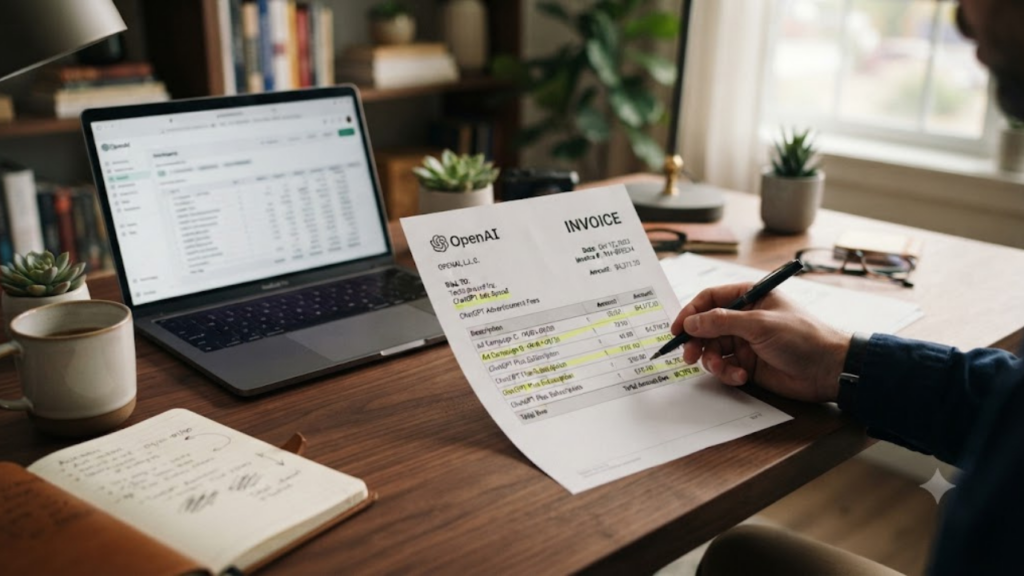
First, Untangle the Two Different Kinds of ChatGPT Bills
This is where most of the frustration starts. When people search for “ChatGPT invoice,” they usually land on instructions written for ChatGPT subscriptions like Plus, Pro, or Business. Those instructions are accurate, but they have nothing to do with your ad spend.
If you pay for a ChatGPT Plus or Pro subscription, invoices come from a billing portal reached through your account settings. You open Settings, go to the Account page, click Manage next to Payment, and your past invoices sit under an Invoice History section. If you use a Business workspace, the route runs through workspace settings, then Billing, then an Invoices tab. Subscriptions bought through the Apple App Store or Google Play don’t show up in either place, because those stores handle the receipts themselves.
The API platform is a third system again. Developers pay for usage there, and invoices live under the organization’s billing section and its billing history tab.
Ads Manager Beta is a fourth system. It’s the advertiser-facing tool where you build campaigns, set budgets, and manage payment, and it has its own billing profile, its own payment method, and its own invoice delivery email. Charges for your ads are separate from your personal subscription charges, even if you signed in with the same OpenAI login.
So if you’ve spent twenty minutes clicking through Settings inside the chat app and can’t find a single advertising invoice, you haven’t done anything wrong. You’re in the wrong building. Ad invoices belong to the advertiser account, not to your chat subscription.
How ChatGPT Ads Billing Works Behind the Scenes
Knowing the billing mechanics makes it much easier to work out which invoice you’re looking for and why it exists. ChatGPT Ads uses a postpay model. You run your campaigns first, spend accrues, and OpenAI charges the card you saved in Ads Manager afterward. Nothing is prepaid the way it would be if you were topping up a wallet.
Two pricing styles are currently available, tied to the objective you choose when you build a campaign. Choose a view objective and you’re billed per thousand impressions, so you pay for reach. Choose a clicks objective and you’re billed per click, so you pay for traffic. That matters for invoices because the numbers you see on them will reflect one model or the other, and a mix of both if you run several campaigns with different goals.
There’s also a concept that trips up a lot of newcomers: the payment threshold. When your account is approved, it gets a threshold that determines how much unpaid spend can build up before your card is charged. If yours were, say, twenty-five dollars, the card would be charged each time you accrued about that much in unpaid spend. Approved advertisers tend to start with a lower threshold, which can rise over time as your payment history stays clean. You can’t change it yourself, and support won’t change it for you.
This is why a busy account can see several small charges within a single month rather than one large charge. If a balance remains at month end, even one that never reached the threshold, it gets charged then as well. Each successful payment produces an emailed receipt. So don’t be surprised if a month of ad activity generates a handful of billing documents instead of a single tidy invoice.
One more detail: when you first add a card, OpenAI may place a temporary authorization hold of one hundred dollars to verify that it works. That holds releases automatically and can linger on your statement for up to three days. It looks like a charge, but it isn’t spent, and it won’t correspond to any invoice. Plenty of people have filed a confused support ticket over exactly this.
Setting Up Your Billing Profile So Invoices Land Where They Should
The single most useful thing you can do for your future self is get the billing profile right on day one. Before any campaign can be delivered, Ads Manager Beta requires two pieces of billing setup. The first is a billing profile that includes your business name, your business address, and an invoice delivery email. The second is a payment method, meaning a credit card and its billing address details.
That invoice delivery email is the address OpenAI uses for invoices and billing-related communication, including failed-payment notices. Think carefully about what goes in that field. If you enter your personal address and later change roles, or the person leaves the company, your invoices leave with them. A shared mailbox such as accounts or finance is usually smarter. That way the paperwork reaches whoever needs it, and it survives staff changes.
Match your billing details to your real business too. Your country or region, currency, and legal entity are tied to how the account was set up, and they may not be editable afterward. Your payment method should also line up with the entity and country you registered under. A US business should generally use a US billing address and a matching card, because a card from a different country may be declined. If you truly need to bill under a different country or legal entity, the usual answer is a separate advertiser account rather than trying to bend the existing one.
If you have tax registration details, such as a VAT or tax ID, sort those out at the start as well. Invoices already issued generally can’t be rewritten to add details later, so getting the information in before the first charge saves you an awkward correction request months down the line.
Finding and Downloading Your Ads Invoices in Plain Language
Now for the part you came here for. There are really two routes to your ChatGPT Ads paperwork, and it’s worth knowing both.
The first is your inbox. Every time a payment goes through, OpenAI sends an emailed receipt, and invoices and billing messages go to the delivery email in your billing profile. If your only need is proof that a charge happened, searching that mailbox for messages from OpenAI is often the fastest route. Filter by date, and check spam or promotions folders if nothing shows up, since automated billing mail is occasionally misfiled.
The second route is Ads Manager itself. Sign in to Ads Manager Beta with the OpenAI login connected to your advertiser account, and head to the billing area, the same place where your billing profile and saved payment method live. That’s where payment history and invoice records sit, and it’s where you’d download a copy as a file to save or forward. Because Ads Manager is labeled Beta, menu names and layouts can shift as OpenAI updates it, so if a button has moved, look around the billing section for anything labeled invoices, payments, or billing history rather than assuming the feature is gone.
A few practical habits make the download itself smoother. Use a desktop browser rather than a phone, since billing pages tend to be more complete there. Make sure you’re signed in as someone with billing access. Confirm you’re inside the right advertiser account, particularly if you manage more than one. And save each file with a clear name the moment you download it, something like the month, the platform, and the amount, so you’re not hunting through a folder of identically named files later.
When the Invoice Doesn’t Show Up or Won’t Download
Sometimes you do everything right and still come up empty. Before assuming something is broken, run through the usual suspects.
Start with the account. Many people have more than one OpenAI login, such as a personal email and a work email, and the advertiser account may sit under the one you use less. If a billing page looks empty, sign out and try your other logins. The same applies if your company has multiple ad accounts and you opened the wrong one.
Next, consider permissions. Billing is normally restricted to certain roles, and a team member added for campaign work may not have access to financial records at all. If you can see campaign performance but can’t reach billing, ask the account owner to either download the documents for you or adjust your access.
Then check the calendar. Because charges occur at a threshold or at month end, an invoice may simply not exist yet for the period you’re asking about. If your balance hasn’t reached the threshold and the month hasn’t closed, there may be nothing to download.
Also look at your inbox filters. Corporate email systems love to quarantine automated messages, and a receipt that never arrived may be sitting in a quarantine folder that your IT team can release.
If a file downloads but opens blank or shows zero bytes, the transfer was probably interrupted. Download it again, ideally in a different browser, and turn off extensions that interfere with file handling. If none of that works and the invoice is genuinely missing, it’s time to contact support, which the section on reaching support below covers in detail.
Reading the Invoice Once You Have It
Getting the file is only half the job, because you also need to know what you’re looking at. An ad invoice should tell you who billed you, who was billed, the invoice number and date, the amount, and the currency. It should also include the tax details that apply to your situation.
Compare the total against what you see in Ads Manager. The dashboard reports metrics like impressions, clicks, spend, click-through rate, and average cost per click or per thousand impressions, along with conversions if you’ve set up measurement. Your invoice total should reconcile with the spend figure for the period it covers. If it doesn’t, don’t panic yet. Timing differences are common. A charge that landed on the first of the month may include spend from the last days of the previous one.
Pay attention to the currency, too. Your billing currency is fixed when the account is created, and if your bank converts it into another currency, your card statement will show a slightly different figure than the invoice. That gap is a bank exchange effect rather than an error on the invoice.
One tax note for advertisers billed in Japan: OpenAI has stated that it currently doesn’t charge Japanese Consumption Tax on ChatGPT Ads invoices, regardless of whether a Japanese tax ID is provided. This differs from the treatment of other OpenAI products, so don’t assume the rules on your subscription invoices apply to your ad invoices. For anything tax-related, your own tax adviser is the right person to ask, since OpenAI doesn’t give tax advice.
Building a Simple Monthly Habit for Records
You don’t need an elaborate system. What you need is a habit small enough that you’ll keep it.
Pick one day early each month, ideally in the first week, and treat it as a record day. On that day, open your billing mailbox, collect any receipts and invoices from the previous month, and download anything additional you can find in Ads Manager. Drop everything into a single shared folder organized by year and month. A short spreadsheet listing the date, the amount, and the invoice number takes a couple of minutes to update and gives you a running total you can check against your campaign reports.
That spreadsheet earns its keep when you need to compare ad spend against results. Suppose you’ve spent a few thousand dollars on ChatGPT Ads and want to know whether it paid off. You’ll have the cost side already organized, and you can match it against conversions from your tracking. That second half matters. Without measurement in place, an invoice tells you what you spent but nothing about what you got. OpenAI offers a measurement pixel for exactly this purpose, and it’s worth setting up early so that spend and outcomes can be read side by side.
If you handle several ad platforms, keep the same folder structure for all of them. Google Ads, Meta Ads, and ChatGPT Ads can each have their own subfolder under the same month. When your accountant asks for everything from a given quarter, you can hand over one link instead of assembling a jigsaw.
Deciding Who Gets Billing Access on Your Team
Billing access is one of those things that’s easy to hand out carelessly. In a small business, it often ends up with whoever set up the account, which tends to mean the founder or a marketing manager who has since moved on to other work.
A cleaner arrangement is to have one clear owner for the advertiser account, and to keep in mind that each business should have only one account owner create it, after which that owner invites other team members. Give campaign builders the access they need to run ads, and keep financial access limited to the people who actually reconcile the books. That protects the payment method and reduces the chance of an accidental change to billing details.
Just as important, make sure that at least two people know where the invoices live. If one person holds all the knowledge and goes on holiday, the finance team is stuck. A short internal note stating which email receives invoices, where they’re filed, and who to ask is worth more than it looks.

What to Do When the Numbers Look Wrong
Now and then an invoice or charge just doesn’t add up. Maybe a click count seems too high, or a charge appears before you expected it. Reach out to OpenAI’s ads support team at ads-support@openai.com, and go in prepared, because a vague message gets a vague answer.
A strong request includes the invoice ID or charge ID, the date range you’re questioning, the specific amount in dispute, and the campaign IDs affected. Attach reporting screenshots or exports that show the discrepancy from your side. When support can see precisely what you see, they can investigate rather than ask you a round of clarifying questions.
Don’t skip the failed-payment scenario either. If a charge fails once you’ve hit your threshold, your campaigns, ad groups, and ads may show as not serving, and you’ll receive an email about the failed invoice payment. The fix is to update your payment method in Ads Manager and confirm the card can actually be charged. Failed charges, disputes, and chargebacks can also slow down your progression to a higher threshold, so it’s worth resolving them promptly.
Suggested Reading: How Do You Know If Your SEO Is Actually Working?
Conclusion
Downloading ChatGPT Ads invoices is less mysterious than it first appears, once you accept that ads billing lives in its own system. Ignore the subscription instructions that dominate search results, set up your billing profile with a shared and durable invoice email, expect several billing documents per month because of the threshold model, and check both your inbox and the billing area of Ads Manager Beta. Keep a simple monthly routine, and you’ll never again be caught out by a Friday-afternoon request from your accountant.
And if you’d rather have specialists handle the entire ChatGPT advertising side, from strategy and conversational ad creative to tracking, retargeting, and clear reporting tied to leads and sales, Complete Gurus is worth a look. Their team offers dedicated ChatGPT Ads specialists, a free AI visibility audit, and weekly dashboards that keep your spend and results in plain sight. Visit https://completegurus.com/ to learn more and book a strategy call.

Ashutosh Mishra is an AI Visibility & Performance Marketing Expert with 14+ years of experience helping businesses grow through AI Visibility (AEO/GEO), Google Ads, Meta Ads, and SEO. He partners with founders and business leaders to build data-driven growth strategies that increase visibility, improve marketing performance, and help businesses get discovered, trusted, and recommended in the age of AI.