
Quick Summary
If you’ve started running ads inside ChatGPT, or you’re about to, the OpenAI Pixel decides whether you’ll ever know what those ads are worth. It’s a small piece of JavaScript that lives on your website. It notices when a visitor arrives from a ChatGPT ad, remembers where they came from, and reports back when they buy, book, or sign up. Without it, you see clicks and nothing else.
This guide covers what the pixel does and what to prepare before touching any code. It then walks through three ways to install it: directly in your site’s head, through Google Tag Manager, and on platforms like Shopify. After that come firing your conversion events, handling consent, adding the server-side Conversions API, testing, and the mistakes that quietly ruin data. It’s written for a business owner or marketer who wants to get this right the first time.

Picture someone asking ChatGPT for help choosing accounting software. A sponsored card appears, they tap it, and they land on your pricing page. Three days later they come back on their own and start a trial. Without a pixel, you’d see a click on one day and a mystery signup on another, with nothing connecting them.
The pixel connects them. When someone clicks your ad, the link carries a click reference, a parameter called oppref. The pixel reads that value when the visitor lands and stores it in a first-party cookie. When the visitor later completes an action you’ve told the pixel about, it sends an event to OpenAI along with that stored reference. Ads Manager then shows which campaign, ad group, and ad started the journey.
It’s also more than a reporting tool. Once you run campaigns that optimize for conversions, the pixel becomes the signal the delivery system learns from. If that signal is broken, the platform can’t learn who your best customers are, so your ads get worse at finding them. That’s the reason to treat setup as a real project rather than a five-minute chore.
Why You Should Do This Before You Spend a Rupee or a Dollar
Ads inside ChatGPT are still a young channel. OpenAI began testing them in the United States in early 2026, and a self-serve Ads Manager followed a few months later. There aren’t years of industry benchmarks to sanity-check your numbers against, the way there are for Google Search. Your own conversion data is the closest thing you have to a rulebook.
I’ve seen the same mistake often: a team launches first and says “we’ll sort out tracking next week.” By then they’ve burned through a chunk of budget with nothing to learn from. The early days of a campaign are when the platform is figuring out who responds to your offer, and if it can’t see conversions during that stretch, it gets no lessons.
There’s an analytics trap too. Google Analytics doesn’t feed OpenAI anything. You can tag your ad links with UTM parameters and watch sessions appear in GA4, which is useful for your own reporting. But that data never reaches OpenAI’s system, so it can’t help the ads improve. UTMs give you visibility, and the pixel gives the algorithm something to learn from. You want both.
Gather Everything You Need Before You Touch a Line of Code
A little preparation saves a lot of frustration, so start by collecting a few things. You’ll need access to your Ads Manager account, where your Pixel ID lives in the conversions section. You’ll also need edit access to your website, whether that’s a theme file, a CMS setting, or a tag manager container. If a developer handles your site, ask them now, because waiting on someone else’s calendar is the most common reason setups drag on.
Next, and this is the part people skip, decide what counts as a conversion for your business. Write it down in plain language. For an online store it’s probably a completed purchase, not an add-to-cart. For a service business it might be a submitted enquiry form, or it might be a booked call, and those are different things with different values. A dental clinic, a SaaS company, and a jewelry brand will each land on a different answer. Settle it before you build, because retrofitting definitions halfway through a campaign muddies your history.
Finally, take a quick inventory of what’s already on your site. If you run Google Ads or Meta Ads, you probably have Google Tag Manager installed. That’s good news, because you can deploy the OpenAI Pixel through the same container instead of editing code on every page. Also check whether you already run a cookie consent tool, since the pixel sets cookies and needs to sit inside that system.
Installing the Pixel Directly in Your Site’s Head
The most direct route is pasting the pixel snippet into the head section of every page. In Ads Manager, open the conversions area and copy the code for your Pixel ID. Use that exact snippet rather than retyping one from a blog post, including this one, because OpenAI can update it.
In plain terms, the snippet does two things. It loads OpenAI’s measurement library from their servers, and it initializes that library with your Pixel ID. Place it as high in the head as you reasonably can. If it loads late, a fast visitor can convert before the pixel is even awake, and you lose that conversion.
While you’re testing, add a debug option to the initialization call. It looks like this:
oaiq(“init”, { pixelId: “YOUR-PIXEL-ID”, debug: true });
With debug on, the library writes what it’s doing into your browser’s console, so you can see whether it loaded and what it sent. Remove that flag before you go live, because you don’t want chatty logs on your production site.
Once the base code is installed, the pixel automatically records a page view on each page. That’s how it picks up the click reference when someone lands from an ad. It doesn’t yet know anything about purchases or signups, which we’ll handle in a moment.
Installing Through Google Tag Manager
If your site already runs Tag Manager, this is usually the cleaner option. You avoid touching site code, you can preview changes before publishing, and you can roll back if something breaks. There are two common ways to do it.
One is to use a community tag template for the OpenAI Pixel, if one is available in the gallery. It gives you fields for your Pixel ID and event details, which suits people who’d rather not paste code. The other is a Custom HTML tag. You create a new tag, choose Custom HTML, paste in the snippet from Ads Manager, and set the trigger to fire on all pages. Either way, the mindset is the same: base pixel everywhere, event tags only where something meaningful happens.
Before you publish, always use Tag Manager’s preview mode and click through your site. Re-open preview after adding any new tag, because tags you add after the last preview session won’t show up in it. It’s a small quirk that has confused plenty of people into thinking their setup was broken.
Also install Tag Assistant to confirm your container loads on the site. If you’re on WordPress and the container doesn’t appear, clear your caching plugin. A cached version of your homepage may not include the tag you just added, which makes it look like nothing worked when the code is simply hidden behind old files.
Setting Up on Shopify, WordPress, and Other Platforms
Platforms differ a lot here, and treating them all the same is how people waste an afternoon.
Shopify is the trickiest. Its checkout is locked down, so you can’t drop a tag into it the way you would on a custom site. Purchase tracking usually needs Shopify’s customer events area, where you add a custom pixel, or a dedicated app that handles the connection. Some apps in the Shopify ecosystem install the pixel and also forward events server-side, which helps with accuracy. If you’re already investing in ads for a store, a specialist in Google Ads for Shopify will tell you the same thing: get the checkout tracking right first, because everything downstream depends on it.
WordPress is friendlier. A header-insertion plugin or your theme’s custom code area can hold the base snippet. If you use WooCommerce, purchase events need to fire on the order confirmation, and that often requires either a small code addition or a plugin built for it. Wix, BigCommerce, Squarespace, and custom builds each have their own header injection settings, so look for a “custom code” or “header scripts” section.
Whatever the platform, the principle is constant. The base pixel goes on every page, and event calls go only where a real conversion is confirmed.
Firing Conversion Events at the Right Moment
This is where most of the value is created, and where most mistakes happen. The base pixel tells OpenAI that someone visited. Events tell it that something worth caring about occurred. You add a call to the measurement function at the exact point a conversion is completed, passing the event name and any details, such as an order value and currency.
The word that matters is completed. A purchase event should fire when the order is confirmed, not when someone reaches the checkout page or clicks the buy button. A lead event should fire when the form submission succeeds, not when the page containing the form loads. It sounds obvious, but a thank-you page can be visited directly, refreshed, or bookmarked. If your event fires purely on page load, each of those counts as a conversion. Where you can, tie the event to a real success signal from your system, like a confirmed order or a successful form response.
OpenAI publishes a list of supported event types, and it’s worth sticking to those standard names rather than inventing your own. Check the current list in the developer documentation, since it can grow. Where a value applies, pass it. An online store can send the actual order total. A lead-gen business can send an estimated value based on its average close rate and deal size. That gives the system a way to tell a big customer from a small one.
Give your events clear names inside Ads Manager too. Future you, reading a report in three months, will be grateful for “Demo Booked” rather than “Conversion 2.”
Consent, Cookies, and Privacy
The pixel doesn’t operate in a vacuum, and depending on where your customers live, consent matters. The pixel stores the click reference in a first-party cookie that lasts about thirty days, and it also sets a browser reference cookie that lasts longer, up to a year. They’re marketing cookies, so they belong in your privacy policy and your cookie banner’s marketing category.
If you serve visitors in regions covered by GDPR or similar rules, load the pixel only after a visitor consents to marketing cookies. In Tag Manager, that means attaching a consent condition to the tag. On a hand-coded install, it means your consent tool has to gate the script. Plenty of sites have a banner that looks compliant while scripts load regardless, and that’s worth checking before regulators or unhappy customers do it for you.
The pixel can also pick up customer details such as an email address from your pages when advanced matching is enabled. According to OpenAI’s documentation, it normalizes and hashes that information in the browser with SHA-256 before sending it along with the event. That protects the raw values, but it doesn’t remove your responsibility to tell people what you collect and why. Have your legal advisor look at this if you handle sensitive categories like health or finance.
Adding the Conversions API for What the Pixel Misses
A browser pixel is only as reliable as the browser it runs in. Ad blockers, strict privacy settings, and interrupted page loads all cause missed conversions. Some conversions also happen away from a browser entirely: a phone order, a deal closed in your CRM, a subscription renewal. The pixel never sees those.
That’s where the Conversions API comes in. Instead of relying on the visitor’s browser, your server sends the event directly to OpenAI. It’s more dependable, and it can carry offline events. OpenAI itself recommends a hybrid approach, running the pixel and the API together, because each covers the other’s gaps.
The important detail is deduplication. If both the pixel and your server report the same purchase, OpenAI needs a way to know it’s one purchase, not two. You handle that by sending the same event ID with both. The system matches events using the Pixel ID, the event name, and that shared identifier, so a single sale is counted once. Skip this and your numbers inflate, your cost per result looks better than reality, and you learn the truth only when the revenue doesn’t add up.
Also preserve the click reference when visitors move through redirects or across domains, and pass it along with your server-side events where you can. If it gets lost between the ad click and the conversion, you can’t attribute the sale.
My advice for most businesses is to start with the pixel, confirm the ads produce something worth measuring, and then add the API. If you already run server-side Tag Manager, adding it is far less work than building from scratch.
Testing Before You Trust a Single Number
Never assume the installation worked because the steps felt right. Test it, and do it the same way a customer would.
Start with the debug mode described earlier and load your site with the browser console open. You should see the library initialize and record page views. Then install OpenAI’s Pixel Helper extension for Chrome if you can, since it shows what fires on each page. Walk your entire funnel: land on the site, browse, start the purchase or fill the form, and finish it. Confirm that each event fires exactly once, at exactly the right moment.
Next, check Ads Manager itself. Under the tools and conversions area there’s an event stream where incoming events appear. Start polling, complete a test conversion, and watch for it to show up. A short delay is normal. If a clearly finished test never appears after a reasonable wait, something in the chain is broken, and you’ll want to find it now rather than after spending real money.
Test across devices and browsers, too. A setup that behaves on desktop Chrome can misbehave on mobile Safari, where tracking is restricted more aggressively. Since much of your traffic likely arrives on phones, this isn’t optional.
Finally, compare Ads Manager’s numbers with your own records for the first couple of weeks: your store backend, your CRM, your booking system. Some difference is normal because attribution models differ, but a huge gap points to a leak somewhere.
The Mistakes That Quietly Wreck Tracking
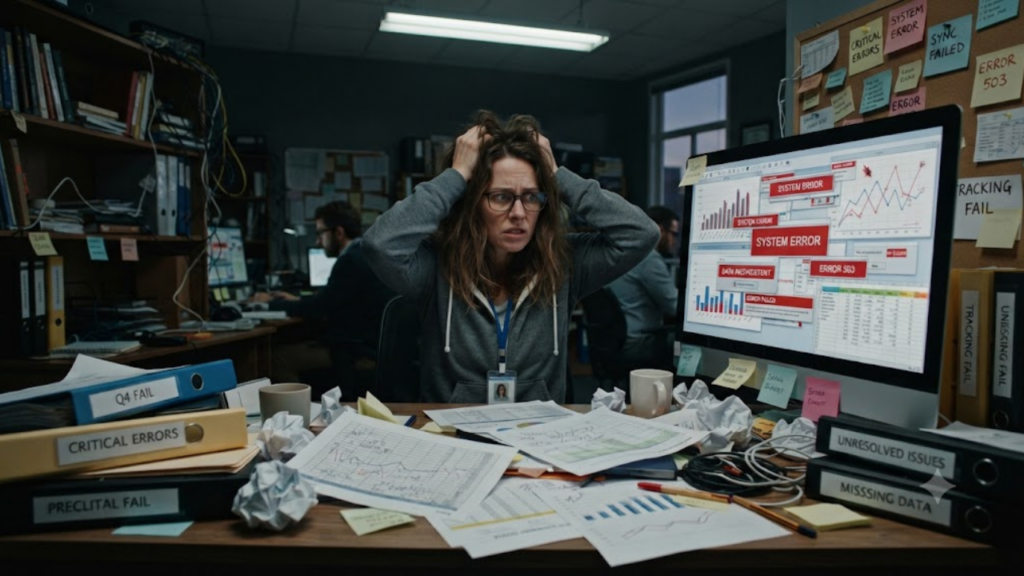
Most tracking failures are unglamorous. The pixel gets installed twice, once in the theme and again in Tag Manager, and every conversion counts double. An event fires on page load instead of on success, so bookmarked confirmation pages inflate results. The click reference gets stripped by a redirect, and sales vanish from attribution even though they happened.
Cross-domain journeys deserve a special mention. If you send people from a marketing site to a separate booking or checkout domain, the handoff has to preserve the click reference, or the trail goes cold at the boundary. The same goes for anything inside a mobile app. If the conversion happens there rather than on the mobile web, you need app-level measurement, and a website pixel won’t see it.
The subtler mistake is attribution settings. Click-through conversions are credited within a configured window, while view-through conversions, where someone saw an ad but didn’t click, use a fixed one-day window when that reporting is available to your account. A longer click window makes results look better. It isn’t wrong, but it should match how your customers actually buy. A quick impulse purchase and a six-week enterprise decision need very different thinking. Pick the window deliberately instead of accepting the default.
The last mistake is treating setup as finished. Sites change. Someone redesigns the checkout, a new landing page goes up, a plugin update overwrites your header code. Schedule a quick tracking review every quarter, and after any major site change. It takes an hour, and it can save months of optimizing against bad data.
Turning Clean Data Into Better Campaigns
Once the events flow reliably, the real advantage begins. Look at results by ad group and audience, not just the campaign average. An average can hide one segment that’s printing money and another that’s burning it.
Watch where people drop off. Plenty of clicks and page views with few purchases usually points to a problem after the ad, in your landing page, pricing, or checkout, not in the targeting. Tracking is a diagnostic tool for the whole funnel, not only for the ad.
Use value data to find which audiences and messages bring in better customers, not just more of them. Fewer, higher-value conversions often beat a flood of cheap ones. And be patient. A learning system needs a stable signal and enough volume, and changing everything every few days resets its progress. Clean data plus patience beats constant tinkering almost every time.
Where Expert Help Fits In
Some businesses would rather not spend their week debugging tags and deduplicating events, and that’s a sensible call. This is work that connects several disciplines, and it rewards people who’ve done it before. Getting tracking right often touches technical SEO for how your pages load, Google Ads and Meta Ads so your channels don’t contradict each other, and landing page quality so the traffic you pay for actually converts.
If you’re weighing your options, it helps to look at where you’re starting from. A free Google Ads audit can reveal how your current tracking behaves before you add another channel. If ChatGPT is becoming a place your customers discover businesses, ChatGPT optimization and answer engine optimization help you show up in organic answers, while paid placements get handled through dedicated ChatGPT Ads (PPC) support. Treating paid and organic as one system tends to work better than running them separately.
Suggested Reading: Your Test Prep Website Gets Traffic but No Leads: What Could Be Wrong?
Conclusion
The OpenAI Pixel isn’t glamorous, but it’s the part that makes everything else measurable. Gather your Pixel ID and decide what a conversion means for your business. Install the base pixel high in the head of every page, directly or through Tag Manager, then fire events only when a conversion is genuinely complete. Respect consent, add the Conversions API with proper deduplication once you’re ready, and test relentlessly before trusting any number. Then keep checking, because sites change and tracking that worked last quarter can quietly break this quarter.
Do that, and every campaign you run teaches the next one something useful. Skip it, and you’re paying for noise. In a channel this new, the advertisers who measure well early will understand their customers better than competitors who spent the same money and learned nothing.
If setting all this up sounds like more than you want on your plate, Complete Gurus does this work every day. It’s a performance marketing agency with over 13 years of experience in Google Ads, Meta Ads, SEO, and AI visibility (AEO and GEO), and it manages more than $3 million in ad spend annually for B2B and eCommerce brands. The team builds and audits conversion tracking, including newer channels like ChatGPT Ads, so your campaigns optimize toward accurate data from the first day. Every engagement comes with a dedicated strategist, weekly reporting in plain English, and a 90-day ROAS improvement guarantee. Visit https://completegurus.com/ to book a strategy call or request a free audit.

Ashutosh Mishra is an AI Visibility & Performance Marketing Expert with 14+ years of experience helping businesses grow through AI Visibility (AEO/GEO), Google Ads, Meta Ads, and SEO. He partners with founders and business leaders to build data-driven growth strategies that increase visibility, improve marketing performance, and help businesses get discovered, trusted, and recommended in the age of AI.